
Sticky Flyer Templates
Download our free, print-ready templates to make artwork setup fast and mistake-free. Each template includes a safe area for important text and a trim guide so your design prints cleanly and professionally.
Not sure if your file is set up correctly? We’ll review it and send a digital proof before printing.
The easiest way to get started
- Choose your sticky note size below
- Design inside the safe area (keep key text away from edges)
- Export as PDF (preferred) and upload with your order
- Approve your proof, then we print and ship
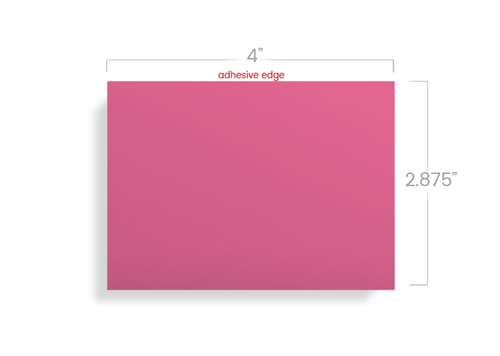
What you’ll find in every template
Use the guides to protect your design from trimming variance and keep it looking polished.
- Trim line: where the final piece is cut
- Safe area: keep logos, phone numbers, URLs, and QR codes inside this zone
- Bleed area: if you’re using a full-bleed background, extend it to the edge of the template
If something is important, keep it in the safe area, especially text.
How to use these templates (no design experience required)
If you’re using Canva
- Create a design using the template as your guide
- Keep important text inside the safe area
- Download as PDF Print (best quality)
- Upload the PDF during checkout or send it to us after ordering
If you’re using Adobe (Illustrator / Photoshop)
- Open the template and design on a new layer above the guides
- Keep guides on a separate layer (don’t flatten into the artwork)
- Save/export as high-quality PDF
- Include linked images if applicable
If you’re using a different tool
No problem—just follow the same concept: safe area + trim guide, and export a print-ready PDF.
File setup tips (to avoid delays)
- Preferred format: Print-ready PDF
- Best logo quality: Vector files (AI/EPS/PDF)
- Image resolution: 300 DPI at final size (if using photos)
- Fonts: Outline fonts when possible (or embed them in your PDF)
- QR codes: Test scan before you upload
Common mistakes
- Text too close to the edge → move it into the safe area
- Low-res logos pulled from a website → be sure to use your original logo file
- Background doesn’t reach the edge → extend the background to the outer guide
- Wrong size/template → confirm you downloaded the template that matches your order size
FAQs
Yes. Use the template guides to set the size of note, then export as PDF Print.
The safe area is the zone where important elements should stay so they don’t look cramped or risk getting too close to trimming.
A print-ready PDF is preferred. However, a high resolution jpeg an png is also an option.
Yes. We are happy to provide a sample to test stick and removability before running a full campaign. If you are in a hurry, you can also try a Post-it brand sticky note. Fill out the form below to request your sample.
Yes! Every order includes a digital proof for your approval. We don’t start production until you’re 100% happy with the design.